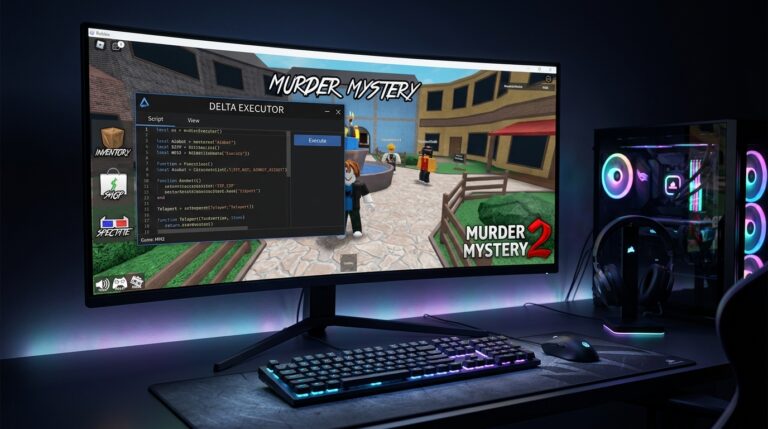
Is Delta Executor a Virus? Safety, Roblox Risks Explained (2026)
If you searched this page, you’re probably seeing virus warnings, Chrome blocks, or scary antivirus labels after downloading Delta Executor — and you want a straight answer, not hype.
Here’s the truth most sites don’t explain properly: Delta Executor is flagged because of how it works, not because it’s automatically malicious. That doesn’t mean it’s “100% safe,” and it also doesn’t mean your device is infected.
The real risk usually comes from fake Delta files, repackaged APKs, or downloads from untrusted sources — not the official executor itself.
This article breaks down why antivirus software and browsers flag Delta, what those warning names actually mean, whether your Roblox account can get banned or hacked, and how to download, install, or remove Delta safely if you decide it’s not worth the risk.
Why Antivirus & Chrome Flag Delta Executor as a Virus
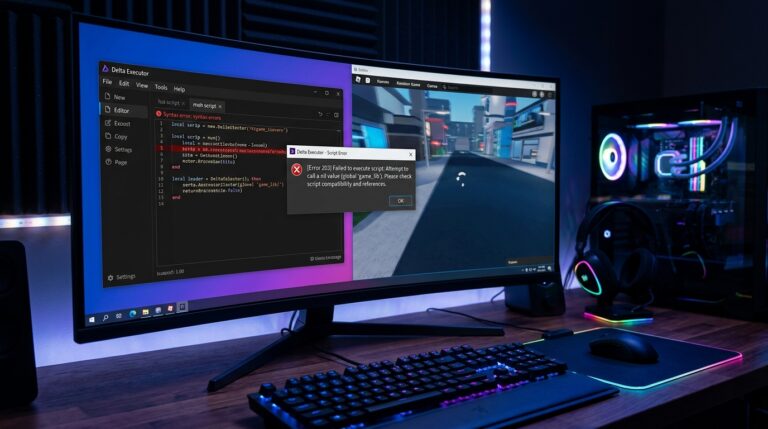
When Delta Executor is downloaded or installed, antivirus apps and browsers like Chrome often display warnings such as “This file may be harmful” or block the APK entirely. These alerts feel alarming—but in most cases, they are triggered by how executors behave, not by proof of data theft or spyware.
Why Executors Trigger Antivirus Heuristics
Modern antivirus software doesn’t only look for known viruses. It also flags apps based on behavior patterns. Delta Executor performs several actions that closely resemble real malware, including:
- Injecting scripts into a running process (Roblox)
- Interacting with memory at runtime
- Using obfuscated loaders to avoid detection by the game
- Executing unsigned or uncommon code paths
These behaviors are common in cheat engines, debuggers, and mod tools, which places executors in a high-risk category automatically—even when no malicious payload exists.
That’s why antivirus tools rely on heuristics (behavior-based guesses) rather than confirmed malware signatures when flagging Delta.
Why Chrome Blocks the Delta Download
Chrome uses Google Safe Browsing, which evaluates files based on reputation, download patterns, and risk signals—not just viruses.
Delta APKs get blocked because:
- The file is new or frequently renamed
- The download source has low or no reputation
- Similar files are commonly associated with abuse (executors, injectors, mod tools)
When Chrome blocks Delta, it usually means:
“We can’t verify this file, and files like this are often abused.”
It does not automatically mean the file is stealing data or infecting your device.
Real Malware vs Script Injectors: The Key Difference
This is where many sites oversimplify.
- Real malware is designed to steal data, install background services, show ads, or persist after reboot.
- Script injectors like Delta are designed to modify another app’s behavior (Roblox) during runtime.
Antivirus software often can’t reliably tell the difference, so it treats both as high risk by default.
That’s why the same warning can appear for:
- Legitimate development tools
- Game mod loaders
- Debugging frameworks
—and malicious trojans.
Is Roblox Being Detected — or the Executor?
This is a common misunderstanding.
Roblox itself is not flagged. The detection happens because:
- Delta attaches to Roblox’s process
- The executor modifies or injects scripts while Roblox is running
From an antivirus perspective, this looks like process hijacking, even though Roblox is the intended target.
So the warning is about Delta’s interaction with Roblox, not Roblox being infected.
Common False-Positive Names You Might See
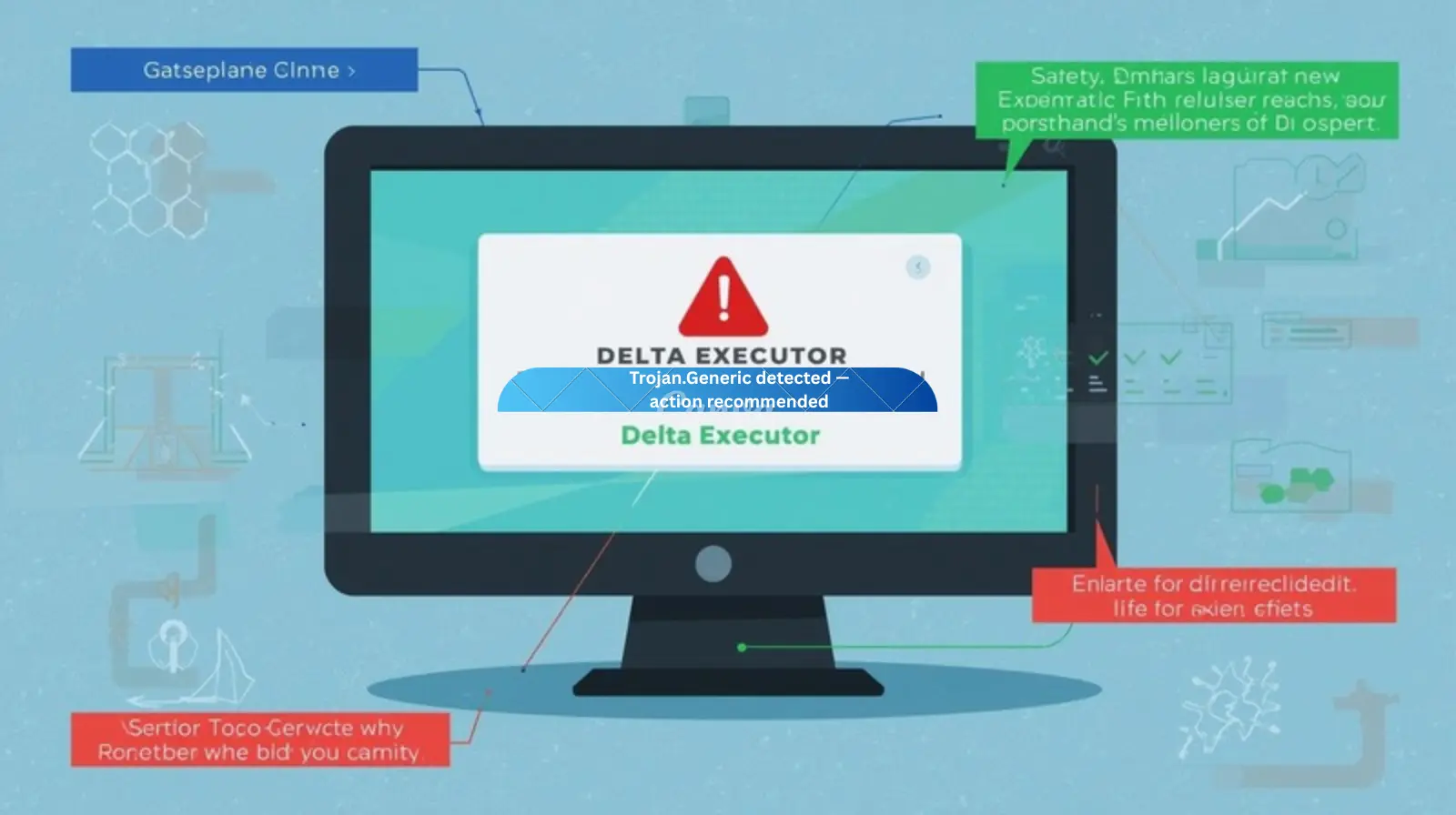
When antivirus software flags Delta Executor, it rarely uses the word “Delta”. Instead, you’ll see generic detection names that sound serious but are often misunderstood. These labels describe suspicious behavior patterns, not confirmed data theft.
Below is what these warnings usually mean in plain English—and when you should actually worry.
| Warning Name | What It Sounds Like | What It Actually Means | When It’s Usually Safe | When to Be Careful |
| Trojan.Generic | A serious virus or data stealer | Antivirus detected unknown behavior similar to trojans, not a confirmed threat | Downloaded from the official Delta source and no background activity appears | App keeps running after uninstall or opens on boot |
| Android.PUA / Riskware | Harmful or unsafe app | “Potentially Unwanted Application” — violates store rules, not malware | Common for executors, mods, emulators, and automation tools | Requests unnecessary permissions or shows ads |
| Heur.ML | AI confirmed it’s malware | Machine-learning guess based on behavior patterns | File is clean but uses obfuscation and injection methods | Flag appears alongside other suspicious behavior |
| Unwanted Application / Suspicious App | Spyware or hacking tool | App is outside normal ecosystem or modifies other apps | Runs only when opened and shows no popups | Persistent background processes or notifications |
When These Warnings Are Normal — and When They Aren’t
Usually normal if:
- The detection name is generic
- The app only runs when you open it
- No ads, popups, or background services appear
High risk if:
- The app asks for Roblox login details
- You see ads or notifications unrelated to Roblox
- The app keeps running after uninstall
That’s when you’re likely dealing with a fake Delta Executor, not a false positive.
Why This Matters
Most users uninstall Delta out of fear without understanding the warning.
Others ignore warnings they shouldn’t.
Knowing what these labels actually mean helps you make the right call—rather than panicking or blindly trusting the file.
Next, we’ll address the question everyone really cares about:
Is Delta Executor actually safe in its latest version—and when is it not?
Is Delta Executor Actually Safe? (Latest Update Reality)
The short answer most sites avoid giving is this: Delta Executor is not inherently malicious, but it is not risk-free either. Its safety depends almost entirely on where it’s downloaded from, how it’s used, and what permissions it’s given.
Let’s break this down without exaggeration or marketing language.
What the Latest Version Does Differently
Recent versions of Delta Executor focus on:
- Short-lived execution (runs only when opened)
- No persistent background services
- No forced permissions unrelated to gameplay
- Frequent updates to bypass Roblox detection, not Android security
This matters because true malware seeks persistence—Delta doesn’t. Once you close the app, it stops operating.
What Delta Executor Can Access
Understanding access limits removes a lot of fear.
Delta can:
- Interact with the Roblox app while it’s running
- Execute scripts within the game environment
- Read data exposed by Roblox during runtime
Delta cannot:
- Read browser-saved passwords
- Access personal files without permission
- Bypass system-level security on its own
- Steal data from other apps silently
If Delta suddenly asks for access outside these boundaries, that’s not normal behavior.
When Delta Is Considered Safe
Delta Executor is generally considered low risk when:
- Downloaded from the official source only
- Installed without granting unnecessary permissions
- Used occasionally, not left running
- Not bundled with modded APKs or “no-key” versions
In this state, antivirus warnings are typically false positives, not signs of infection.
When Delta Is NOT Safe
Delta becomes risky—or outright unsafe—when:
- Downloaded from mirrors, Telegram links, or modded APK sites
- Combined with “premium unlocked” or “no-key” versions
- Asking for Roblox login credentials
- Running ads, popups, or background services
At that point, the danger is no longer Delta itself, but a fake or repackaged version using the Delta name.
Fake Delta Executors vs Real One (Biggest Security Risk)
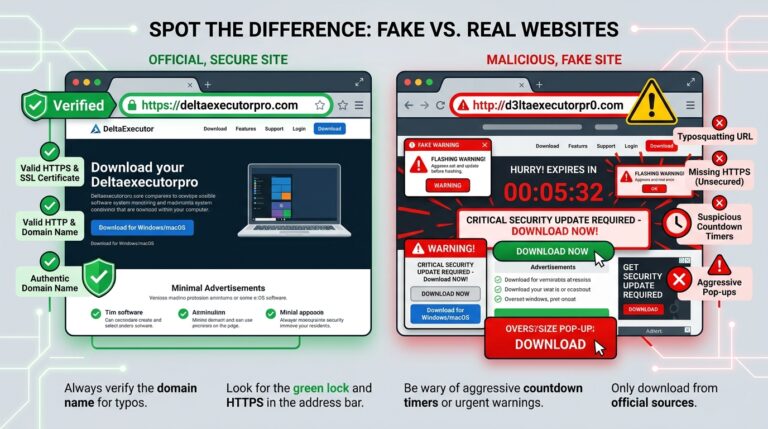
Most reports claiming “Delta Executor is a virus” don’t come from the real executor at all. They come from fake or repackaged Delta files that use the same name but behave very differently.
These fake versions are the primary source of actual malware, stolen accounts, intrusive ads, and background processes. Understanding the difference between the real Delta and fake executors is critical for your device and Roblox account safety.
Real Delta Executor vs Fake Delta APKs (Quick Comparison)
| Feature / Behavior | Real Delta Executor | Fake or Malicious Delta |
| Download source | Official Delta site only | APK mirrors, Telegram, mod sites |
| File name | Standard, consistent naming | Renamed, “premium”, “no key”, “mod” |
| Permissions requested | Minimal, gameplay-related | Storage, contacts, overlays, SMS |
| Ads or pop-ups | None | Frequent ads & redirects |
| Background activity | Stops when closed | Runs in background |
| Roblox login request | Never | Often asks for credentials |
| Antivirus detection | Heuristic / PUA warnings | High-risk trojans, spyware |
| Account risk | Low to moderate | High (hijacking & bans) |
| Device impact | Temporary executor runtime | Persistent malware behavior |
How to Spot a Malicious Delta File
If Delta Executor behaves outside the points below, you should assume it is not the real version. Most malicious Delta files reveal themselves quickly—you just need to know what to look for.
Use this checklist before continuing to use any Delta file.
Immediate Red Flags (Uninstall Instantly)
If you notice any one of the following, uninstall the app right away:
- The app asks for Roblox login credentials
- Ads, pop-ups, or browser redirects appear
- The app runs even after you close it
- The file name includes “mod”, “premium”, or “no key”
- New apps appear on your device without permission
These are not normal executor behaviors.
Suspicious Permission Requests
A legitimate Delta Executor does not need:
- Contact access
- SMS or call permissions
- Overlay permissions
- Accessibility services
If Delta requests any of these, the file has been altered.
Installation Warning Signs
Pay close attention during installation. Malicious versions often:
- Force-enable unknown settings
- Redirect you to other downloads
- Ask you to install companion apps
- Require repeated permission approvals
The real Delta installs cleanly and directly.
Behavior After Installation
After opening Delta, observe how it acts:
Normal behavior:
- Runs only when opened
- No notifications when idle
- No data usage when closed
Malicious behavior:
- Background activity with no user action
- Increased battery drain
- Data usage when idle
These signs indicate persistence, a classic malware trait.
Final Safety Rule
If Delta does more than execute scripts inside Roblox, it’s not Delta anymore.
Even one red flag is enough reason to remove it.
Learn more about the Delta Executor key and how it works here.
Roblox Account Risks (Bans, Hacks & Detection)
One of the biggest questions for Delta Executor users is:
“Can using this get me banned or hacked on Roblox?”
Here’s what you need to know—without fear-mongering but with full transparency.
Can You Get Banned for Using Delta?
- Yes, but risk varies. Roblox’s anti-cheat system detects abnormal script execution or injectors running alongside the game.
- Official Delta (latest version, official source) is designed to minimize detection, but no injector is completely “ban-proof.”
- Ban likelihood is higher for repeated use, aggressive scripts, or using fake versions.
Rule of thumb:
- Occasional use on an alt account carries low risk.
- Using it on your main account increases exposure, especially with fakes.
Tip: Always separate testing accounts from valuable accounts. This is how most experienced users protect themselves.
Is It Possible to Get Hacked on Roblox?
- Official Delta does not steal passwords. It interacts only within Roblox during runtime.
- Hacks usually occur when users download fake or modified executors asking for login credentials.
- If a file requests your username/password outside Roblox’s official login, treat it as malware.
Extra layer of safety:
- Enable 2FA on Roblox.
- Never enter passwords in executors or third-party apps.
How to Safely Download & Install Delta Executor
If you decide to use Delta Executor, how you install it matters more than the executor itself. Most security issues happen because users rush this part or download from the wrong place.
Follow the steps below to reduce both device risk and account risk.
Step 1 – Verify the Source (Most Important Step)
This single step eliminates most malware cases.
- Download Delta only from the official source
- Avoid APK mirrors, Telegram links, and “mod” pages
- Do not trust YouTube descriptions with shortened URLs
Step 2 – Prepare Your Device (What “Unknown Sources” Really Means)
To install any APK outside the Play Store, Android requires enabling Install Unknown Apps.
What this setting does:
- Allows your browser to install ONE APK
- Does not give permanent system access
- Does not bypass antivirus protection
What it does NOT do:
- It does not disable Android security
- It does not allow silent installs
- It does not give access to personal data
Enable it only for the browser you’re using, not system-wide.
Step 3 – Install Delta Executor (Clean Installation Flow)
A legitimate Delta install is straightforward:
- Tap the downloaded APK
- Review permissions carefully
- Install the app
- Open Delta manually (no auto-launch)
Stop immediately if:
- You’re redirected to another download
- You’re asked to install extra apps
- You see ads during installation
Those are signs of a fake or bundled APK.
Step 4 – Post-Install Safety (Most Users Skip This)
After installation, do these three things:
- Re-disable “Install Unknown Apps”
- Delete the APK installer file
- Run a device security scan
This removes leftover risk and prevents accidental installs later.
Safe Usage Guidelines
To keep risk low while using Delta:
- Run it only when needed
- Close it completely after use
- Never grant unnecessary permissions
- Avoid aggressive or suspicious scripts
Delta is meant to run temporarily — persistence is not normal.
How to Remove Suspicious Files or Completely Uninstall Roblox
Sometimes, users decide it’s safer to remove Delta Executor—or even Roblox itself. Doing it correctly prevents leftover files, hidden malware, or false positives from triggering again.
1. Removing Fake Delta or Malware
If you suspect the executor is fake:
- Uninstall the app immediately via Android’s app manager or Windows control panel.
- Check for leftover APKs or scripts in your downloads folder. Delete them.
- Scan your device with a trusted antivirus app.
- Reboot your device to clear temporary processes.
Pro tip: Only one red flag is enough to remove the file. Don’t wait for multiple issues.
2. How to 100% Uninstall Roblox (Android & PC)
Sometimes Delta or fake executors can leave behind traces. If you want a clean slate:
Android:
- Long-press Roblox → Uninstall
- Open File Manager → Delete leftover folders (/Android/data/com.roblox…)
- Clear browser cache if you installed via APK
PC:
- Control Panel → Uninstall Roblox
- Delete Roblox folders in C:\Users\[YourName]\AppData\Local\Roblox
- Restart PC
This ensures no residual scripts or executables remain.
3. When Uninstalling Is Actually Necessary
Uninstalling Roblox is usually overkill. Do it only if:
- You installed a malicious Delta version alongside it
- You experienced persistent malware alerts
- Background processes continue even after removing the executor
If Delta came from the official source and behaved normally, a full uninstall is not required.
Also check out our guide on the Blox Fruits script for safe usage tips.
Conclusion
Most “Delta virus” alerts come from fake versions. The official Delta executor is generally safe when used cautiously and installed correctly.
Frequently Asked Questions
Is Delta Executor a Crypto Miner?
No. Delta Executor does not mine cryptocurrency. Some fake APKs may include crypto-mining scripts, but the official Delta app only runs scripts inside Roblox.
Is the “No Key” Version Safe?
Absolutely not. “No Key” or “Premium Unlocked” versions are almost always fake, often bundled with malware or ads. Only use the official version from the trusted source.
Can Delta Access My Personal Data?
No. Delta cannot read saved passwords, personal files, or other app data. Any file requesting unusual permissions is a fake version and should be uninstalled immediately.
Can Using Delta Get Me Banned on Roblox?
Yes, but risk is mostly low if you follow safety rules:
Use official Delta only
Prefer an alt account for testing
Avoid scripts or versions designed to bypass Roblox detection
How Do I Know If My Delta Is Fake?
Check for these red flags:
Requests Roblox login credentials
Runs ads or pop-ups
Background activity after closing
Renamed or modded APKs (“No Key”, “Premium”)
Even one red flag is enough to delete the app.
Should I Uninstall Roblox After Using Delta?
Only if you installed a malicious version or encounter persistent malware alerts. Otherwise, a clean uninstall of Delta + leftover APK cleanup is sufficient.